![White_favicon.png]](https://help.rask.ai/hs-fs/hubfs/White_favicon.png?height=40&name=White_favicon.png)
With Rask, you can turn one video into a dubbed version in another language in a few clicks. This guide walks you through the whole process, from upload to download. Prefer video? Watch the full product guide below.
Step 1. Upload your video
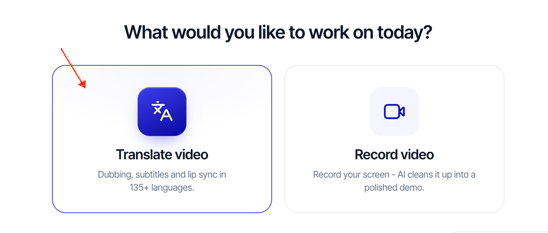
Click the Translate Video button.
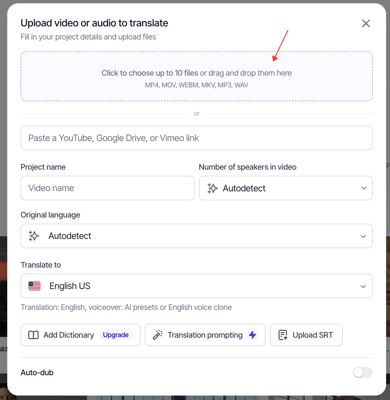
Add the file you want to translate, or paste a link to YouTube, Google Drive or Vimeo. Check the upload requirements for supported formats and length, and see how to translate a video by link.
Step 2. Choose languages and the dubbing engine
Choose the language or languages you want your video translated into. You can select up to 10 target languages at once, and Rask creates a separate project for each one (learn more). Each language uses its own minutes.
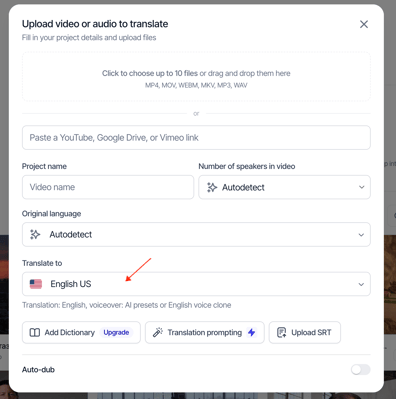
For most languages, Dubbing 2.0 is selected by default. It translates with the context of the whole script and keeps the speaker's natural pace. Optionally, add a Translation Dictionary to keep brand names and terms consistent.
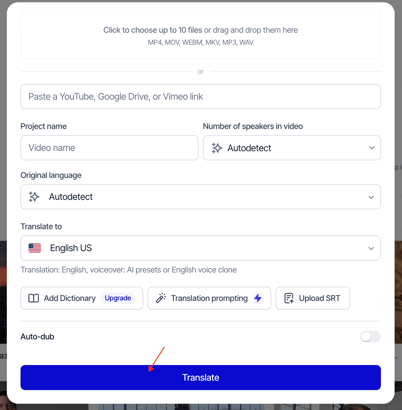
Click Translate.
Step 3. Review the transcript and translation
Open the project when it is ready. Before dubbing, check the most important parts:
- Fix any words in the transcript or translation. See how to edit a project.
- Make sure each speaker is detected correctly and has the right voice: a voice clone of the original speaker or an AI voice preset. See voice options.
- Listen to individual segments with Voiceover Preview to catch sped-up or slowed-down speech before you dub.
Step 4. Dub the video
Click the Dub Video button. Processing usually takes about 10 minutes for a 20-minute video (processing times).
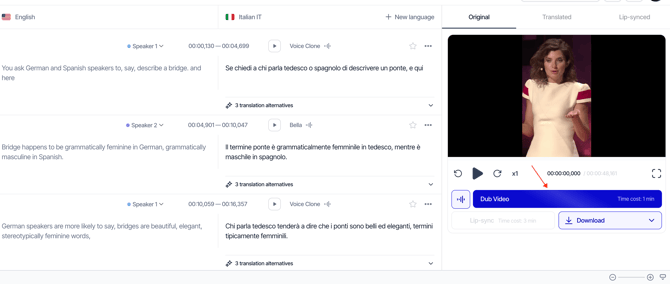
Want the speaker's lips to match the new language? After dubbing, you can run lip-sync (Creator Pro and higher).
Step 5. Download the result
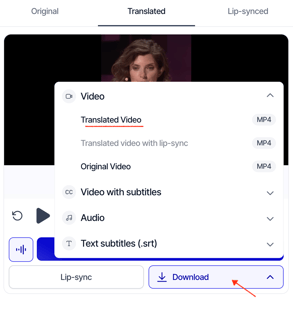
Click the Download button to get the dubbed video, an audio track or subtitles. See all download options.
How many minutes will it use?
1 minute of dubbing equals 1 minute of translated video in each language. Re-dubbing segments after edits is free. Details are in Plans and minutes explained.
If something goes wrong during processing, see what to do if your project is stuck or failed. For any other questions, contact us through the support chat or at support@rask.ai.