![White_favicon.png]](https://help.rask.ai/hs-fs/hubfs/White_favicon.png?height=40&name=White_favicon.png)
Why do I need to edit something in the project?
Sometimes, the automated translation pipeline might not be perfect. To address this, you can manually edit your project to achieve better dubbing results.
How to correct something in a transcript?
-
Simply click on the incorrect word and make the adjustment. When making changes in original text, the translated segment will be translated again.
-
Please don't forget to click Apply changes to get updated result.
Simply click on the incorrect word and make the adjustment. When making changes in original text, the translated segment will be translated again.
Please don't forget to click Apply changes to get updated result.

How to edit timestamps?
-
The quickest option is to move the sliders, you can do that on both sides, to change the start and stop times.

-
If you want to set the exact start/end time you can also do that manually, just click at the timestamp and correct it to your liking.

Please remember to click Apply Changes to update the project.
How to edit speakers?
If you need to edit the speaker or add a new one, feel free to tap on Speaker in the segment, and then tap Apply Changes.

How to edit Speakers voice?
-
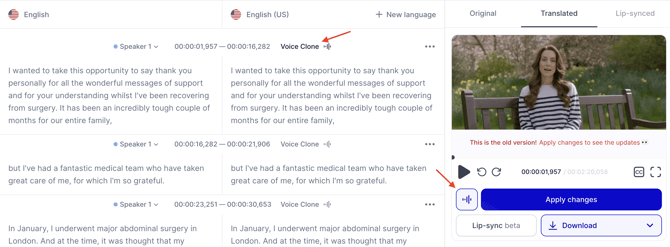
To assign a specific Voice to a speaker, click the voice name next to the speaker
-
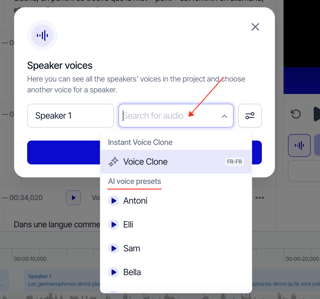
Choose the desired VoiceOver - Instant Voice Clone, Voice Clone from Library, or one of the AI voice presets.
-
Click Apply changes button to save the updated transcript.
How to create/delete a segment?
To delete a segment just click three dots icon and choose Delete.

To create one between the segments, hover between them and choose Add segment. To create a segment before the first or after the last segment, just hover before/after the one.

How to split/merge the segments?
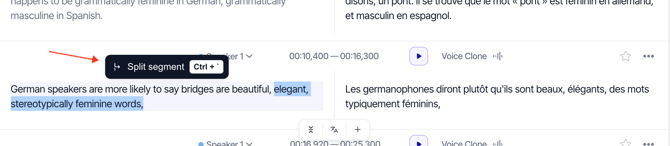
You can split the segments by highlighting the text in the segment and choosing Split segments.
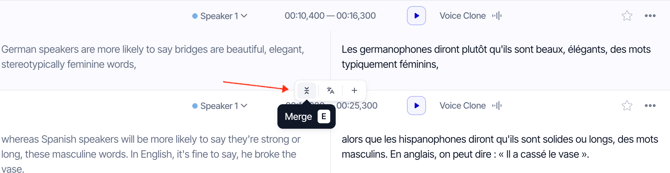
To merge the segments, just hover between them and click Merge.
Here's a more detailed guide on how to do that.
How to undo and redo changes?
Use "Undo" and "Redo" to step back and forward through your edits. They cover text changes and supported segment actions in the editor. Press Ctrl + Z (⌘ + Z on Mac) to undo and Ctrl + Shift + Z (⌘ + Shift + Z) to redo. When the cursor is inside a text field, these shortcuts undo and redo your typing in that field. Undo works within your current editing session. To return to an earlier saved state of the project, use Version history.
How to change playback speed?
Choose a speed in the video player: 0.75× for careful review, 1× for normal playback, or 1.25×, 1.5× and 2× for a quick pass. The speed applies to the editor preview only, and your exported video keeps its original timing.
How does word highlighting work?
While the video plays, each word lights up as it is spoken, so you can follow the audio in the transcript and spot at a glance where speech and text differ. Word highlighting is available for segments with word-level timing.
Which keyboard shortcuts can I use?
Open "Help" → "Keyboard shortcuts" in the editor to see the full list at any time.
| Action | Windows / Linux | macOS | Where it works |
| Undo | Ctrl + Z | ⌘ + Z | Outside a text field |
| Redo | Ctrl + Shift + Z | ⌘ + Shift + Z | After you undo an action |
| Search in project | Ctrl + F | ⌘ + F | Anywhere in the project |
| Play / pause | Space | Space | When you are not editing text |
| Back / forward 10 seconds | ← / → | ← / → | When you are not editing text |
| Merge | E | E | On the selected or hovered segment |
| Merge and re-translate | R | R | On the selected or hovered segment |
| Add segment below | A | A | On a segment |
| Add segment above | Shift + A | Shift + A | On a segment |
| Split text at cursor | Ctrl + ` | Ctrl + ` | While editing text (Ctrl on Mac too) |
| Insert a pause | ~ | ~ | In the text where you want the pause |
How to hear your edits?
After you change the text, click "Apply changes" or run the voiceover to generate new audio. The editor shows a reminder when the video preview is waiting for your latest text changes. Before you export, listen to the result at 1×.
Edits didn't change the dub?
Check these first:
- Make sure you clicked Apply changes after editing. The editor shows a reminder while the preview is waiting for your latest changes.
- Play the edited segment with Voiceover Preview to hear the new audio.
- If you edited the original text, check that the translation was updated too.
- To go back to an earlier state, use Version History.
Re-dubbing segments after edits doesn't use extra minutes: you pay once for the minutes of the final video.
If the dub still doesn't change, please contact our support team via support@rask.ai or through the support chat.
Describe the issue in detail, and share a link to your project in Rask (to share the link to your project, open your project and copy the link from your browser).
Our specialists will do their best to resolve the issue.