![White_favicon.png]](https://help.rask.ai/hs-fs/hubfs/White_favicon.png?height=40&name=White_favicon.png)
Two choices shape the accent of a dub: the language variant you translate to and the voice that speaks it.
In Dubbing 2.0, the language variant also guides the accent for seven variants: English (US), English (UK), Spanish (Spain), Spanish (Mexico), Portuguese (Brazil), Portuguese (Portugal) and French (France). Spanish (Spain) sounds Castilian, Spanish (Mexico) sounds Mexican and English (UK) sounds British. This works with voice clones and with AI voices that use the Dubbing 2.0 voice model, with no extra setting. Results can vary by voice and segment, so listen to a few segments first.
For other variants, for example French (Canada), the voice decides the accent, so choose a voice with the accent you need.
What each setting controls
| Setting | Where | What it controls |
|---|---|---|
Translate to (for example Spanish (Mexico), Spanish (Spain), French (Canada)) | Upload window | Vocabulary, spelling and expressions of the translation. In Dubbing 2.0, also the accent for the seven variants above |
| Voice (clone or AI voice preset) | Speaker voices | How the speech sounds, including the accent for other variants |
Some regional variants share one group of recommended voices, for example French (Canada) suggests voices with a French accent. For the seven variants above, Dubbing 2.0 still guides the dub toward the accent of the variant you picked. A few ready-made voices use the previous voice model: if the accent sounds off, try another voice or a voice clone.
Get the accent you need
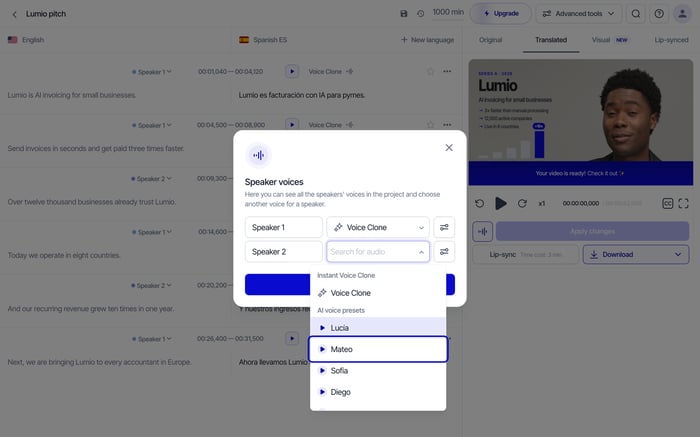
With an AI voice preset
- Open the project and open Speaker voices.
- Open AI voice presets and listen to the voices for your language.
- Choose a voice with the accent you need.
- Click Apply changes to update the dub.
With a voice clone
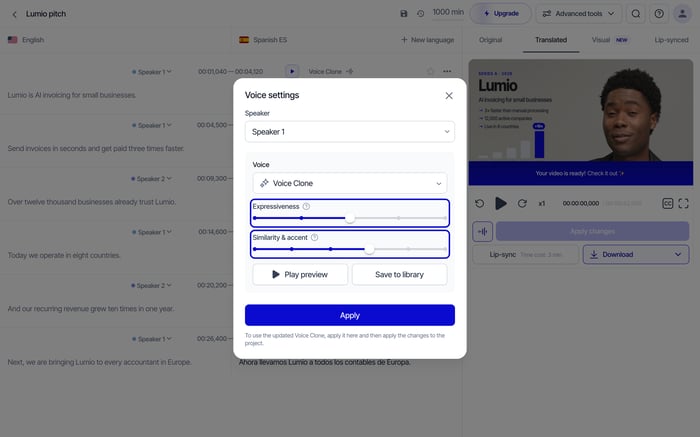
A clone copies the speaker's voice, so its accent in the new language depends on the sample and on the Similarity & accent setting.
- Use a clean sample: one speaker, no music, a quiet room. If the speaker already has the accent you need, the clone keeps it.
- Open Voice settings for the clone:
- Similarity & accent: how closely the voice follows the sample, including its pronunciation, so a higher value keeps more of the speaker's own accent.
- Expressiveness: how much emotion and variation the voice has.
- Click Generate preview and listen.
- Click Apply in the project, or Save in the voice library.
- Click Apply changes to update the dub.
There is no separate accent selector for a clone, so if the clone still sounds wrong for the market, try an AI voice preset with a native accent for that region.
Tips
- To apply the accent to a project dubbed before November 20, 2026, re-dub the segments you need.
- Listen to one or two segments with Preview segment audio before you re-dub the whole video. Changes to the text and re-dubbing of segments are free using the transcript-editing workflow.
- For a series of videos, save the voice settings in the voice library, so every episode sounds the same.
- For names and terms that sound wrong, see How to fix the pronunciation of names, terms and numbers.
Need help with a large project?
If you're localizing a lot of content, for example 2,000 minutes or more, book a call with our team. On Business and Enterprise, we offer free onboarding and help you choose voices and settings that fit your audience.