![White_favicon.png]](https://help.rask.ai/hs-fs/hubfs/White_favicon.png?height=40&name=White_favicon.png)
You might need this option if you plan to transfer subtitles from Rask to other programs, such as CapCut, Premiere Pro, and DaVinci.
This may be done by exporting the subtitles via .SRT files.
1. Download the SRT file from your project
2. Create a projectin your video editor (CapCut or Premier, or any other)
3. Add your video to this project and ad the SRT file from your RASK project
4. Make necessary edits and you're good to go.
How to add SRT to your Youtube video?
1. Enter your YouTube studio: https://studio.youtube.com/
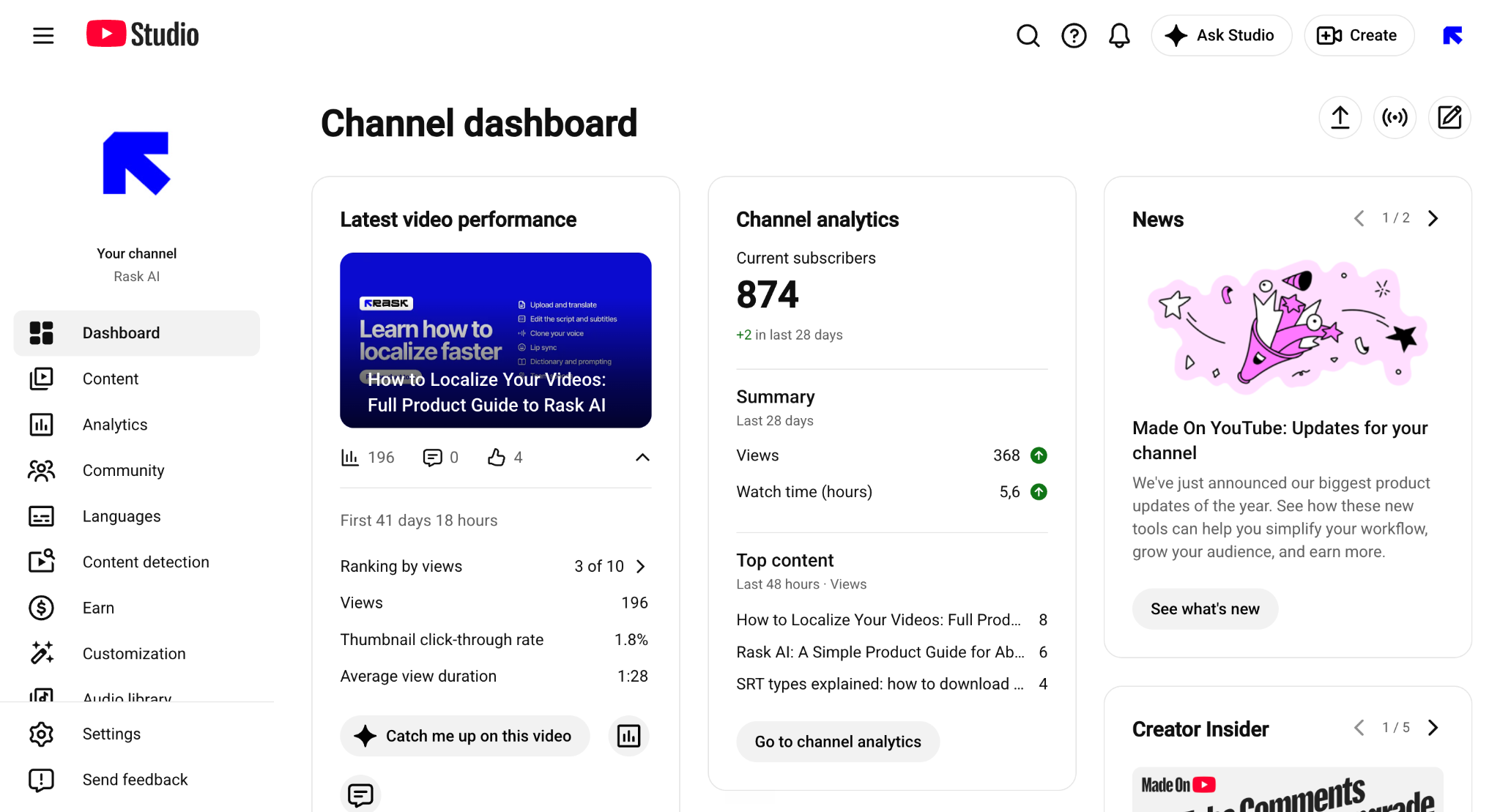
2. Click Content
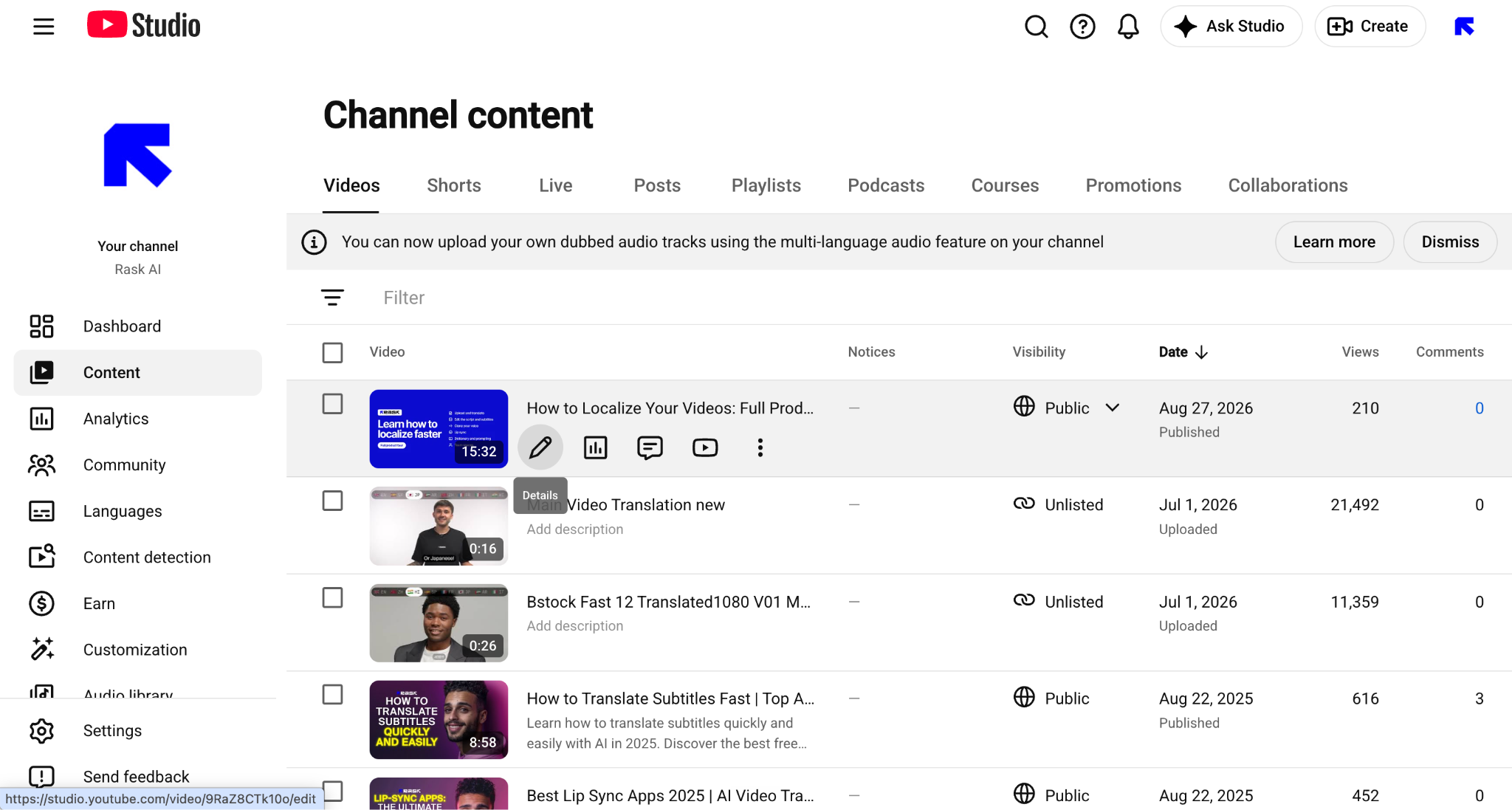
3. Find a video you want to add subtitles to and click Details (карандашик)
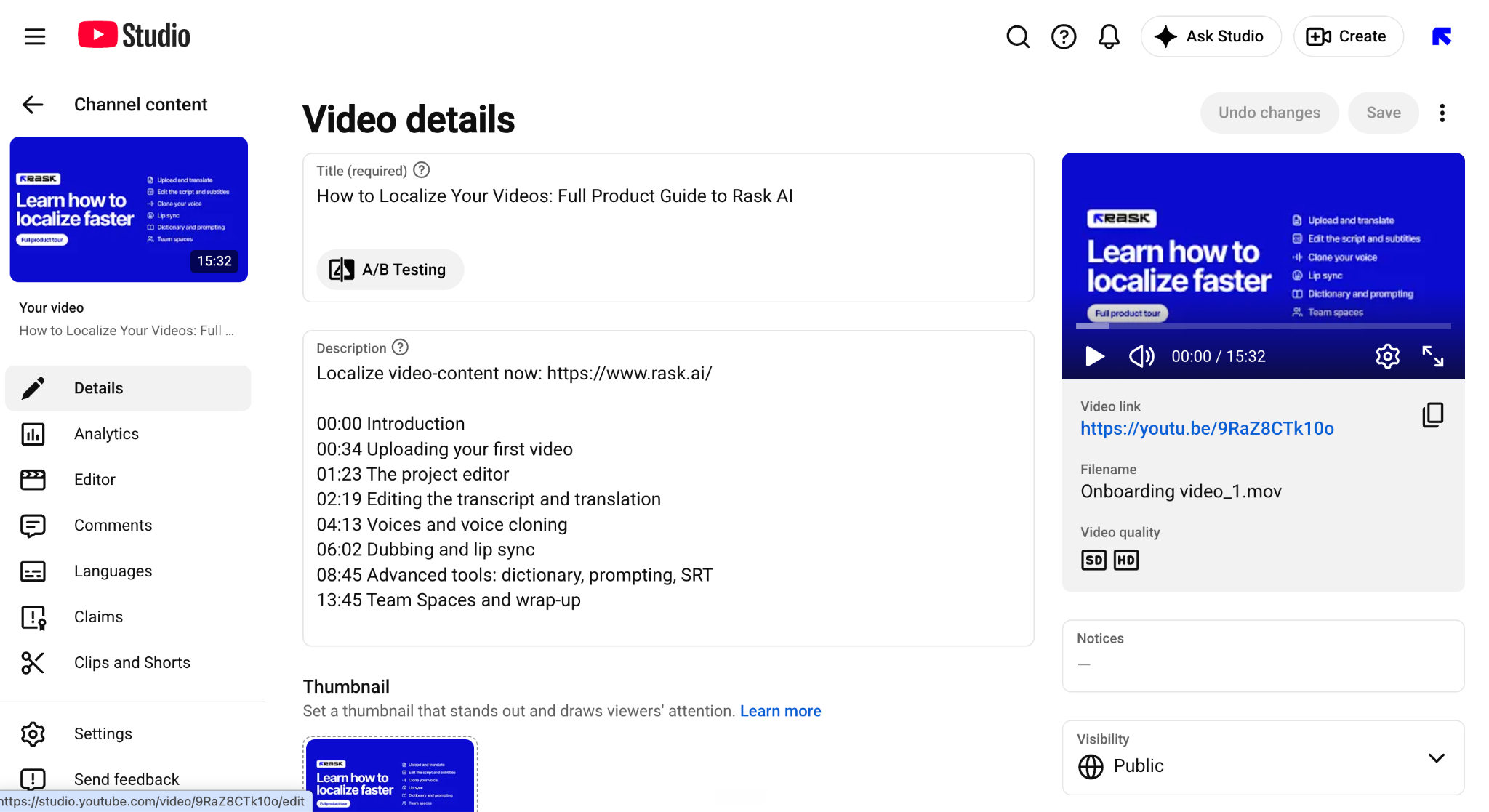
4. Click Languages
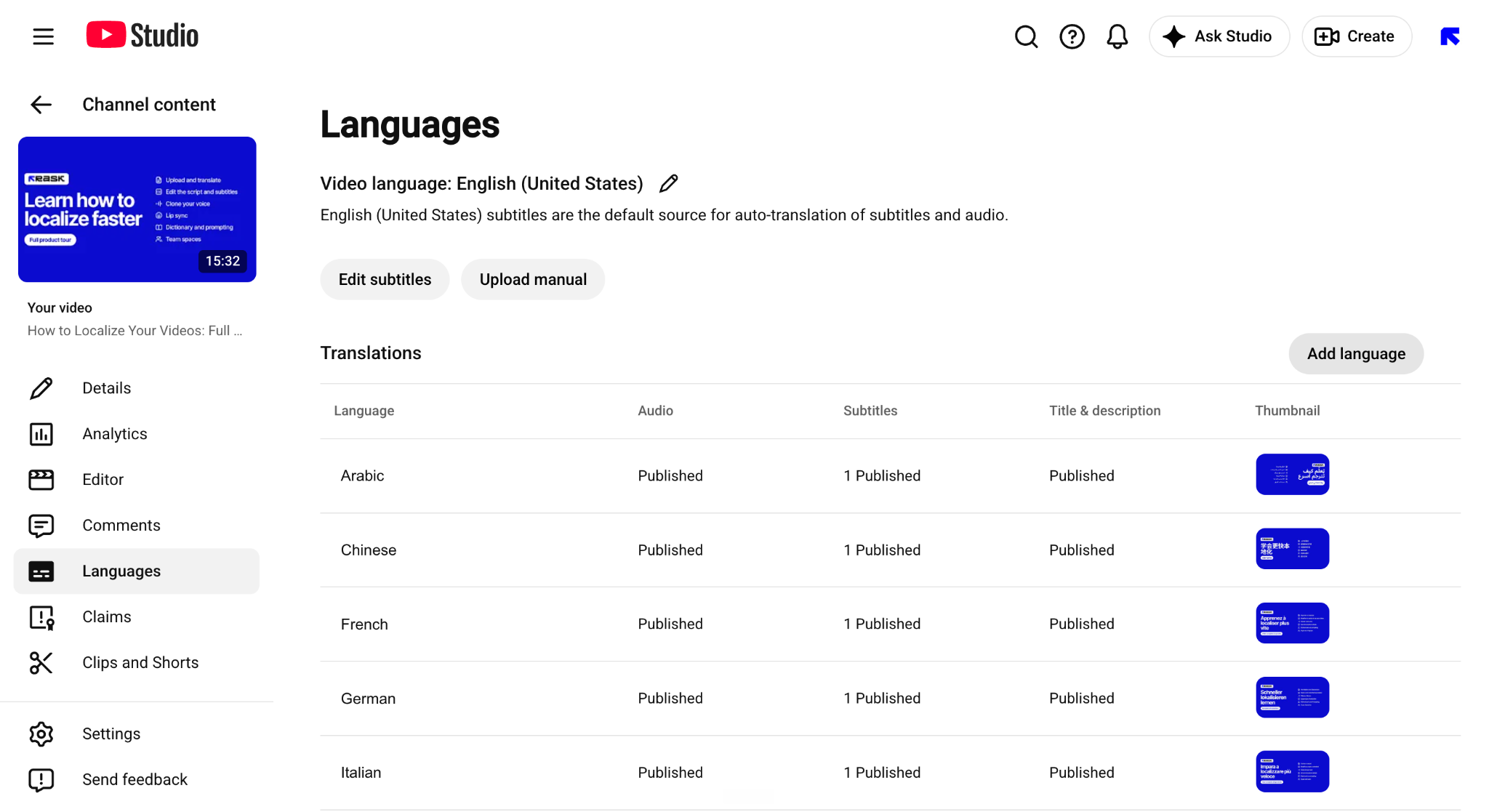
5. Click “add language” to add new language translation and subtitles at once or “upload manual” if you already have a language translated.
6. While clicking “add language” choose a the target language from the dropdown.
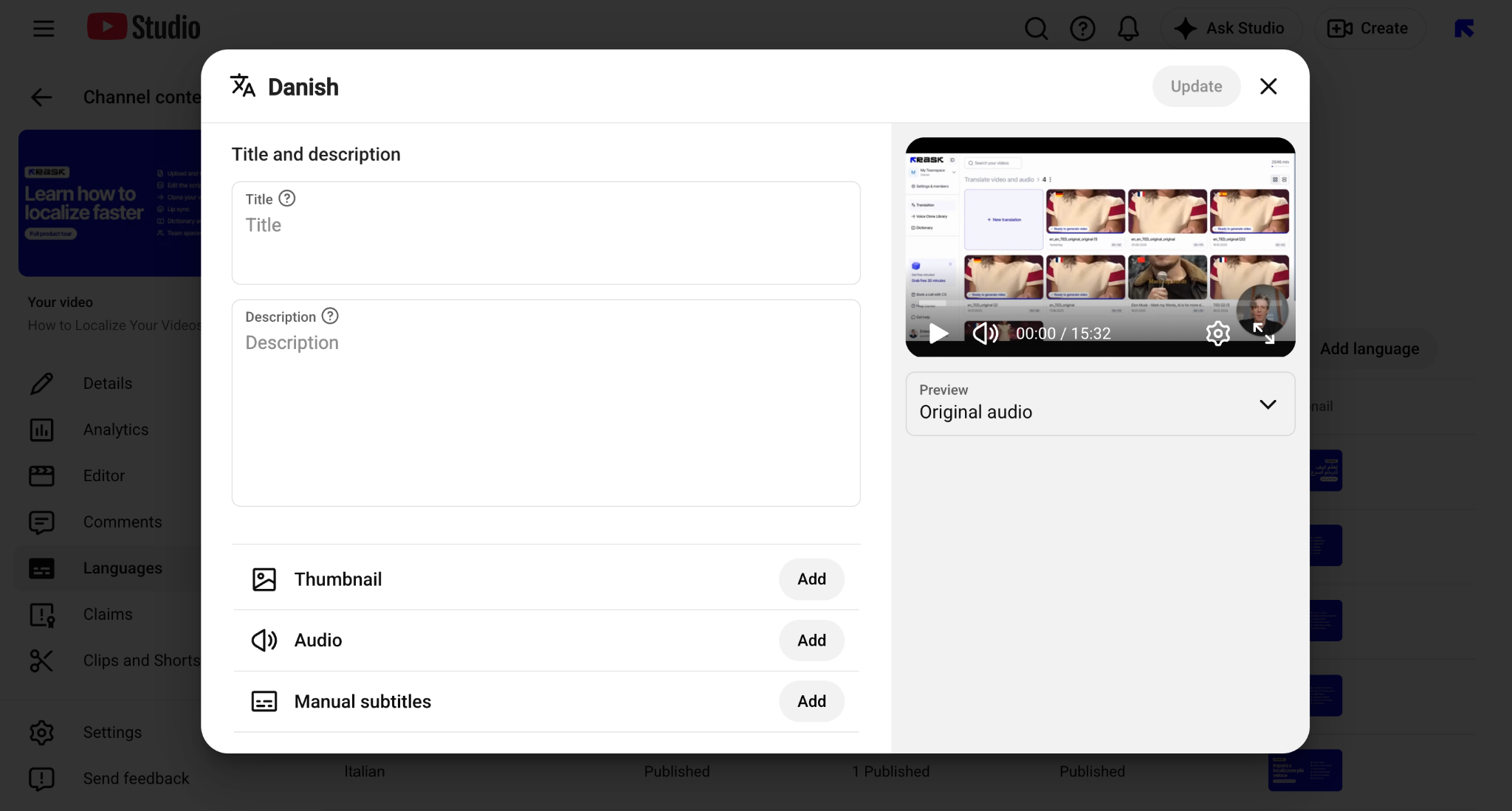
7. On ‘Manual subtitles’ click “add”
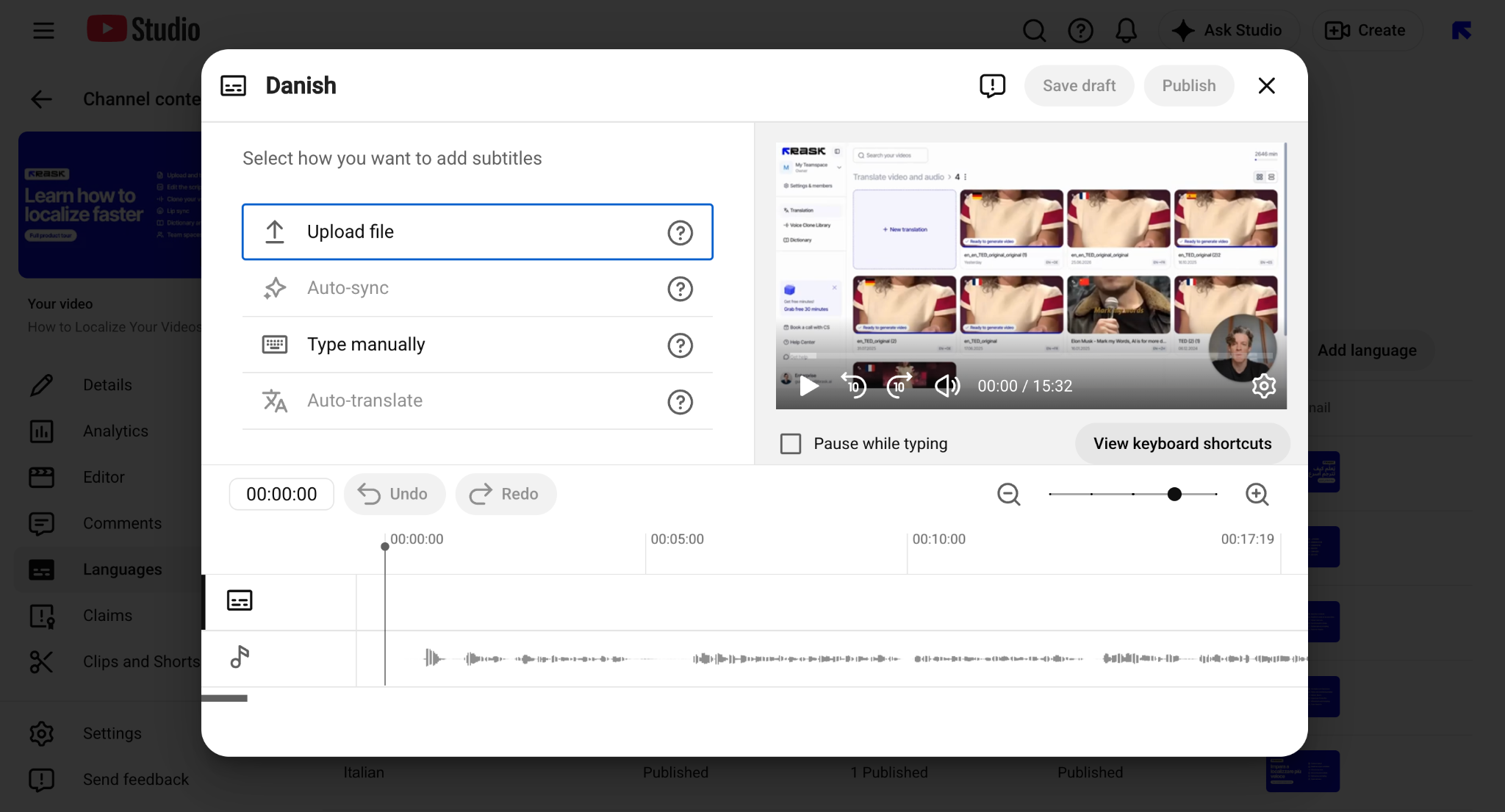
8. Choose an option with “Upload file”
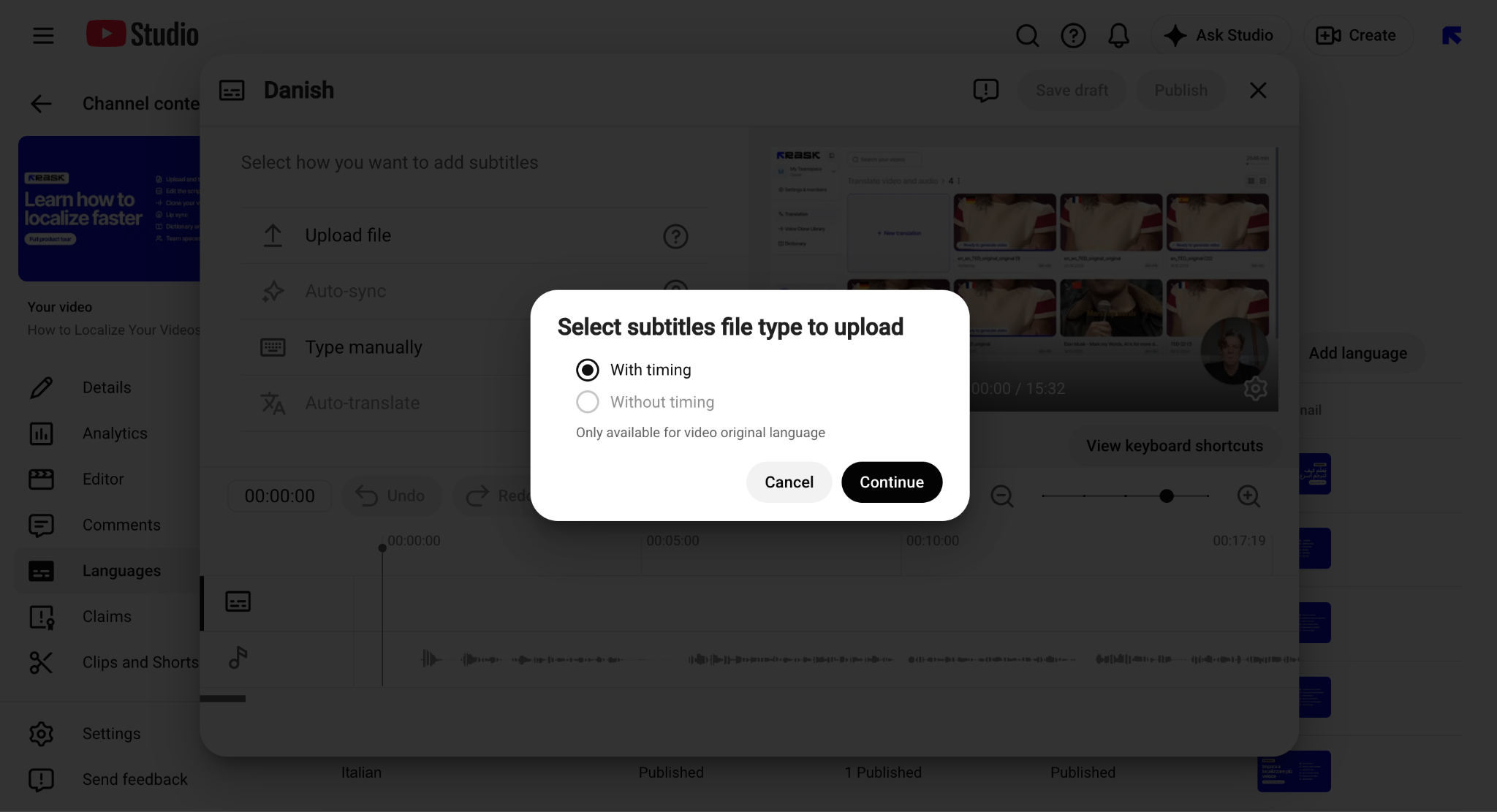
9. You will likely have the only option available “With timing”, continue with it.
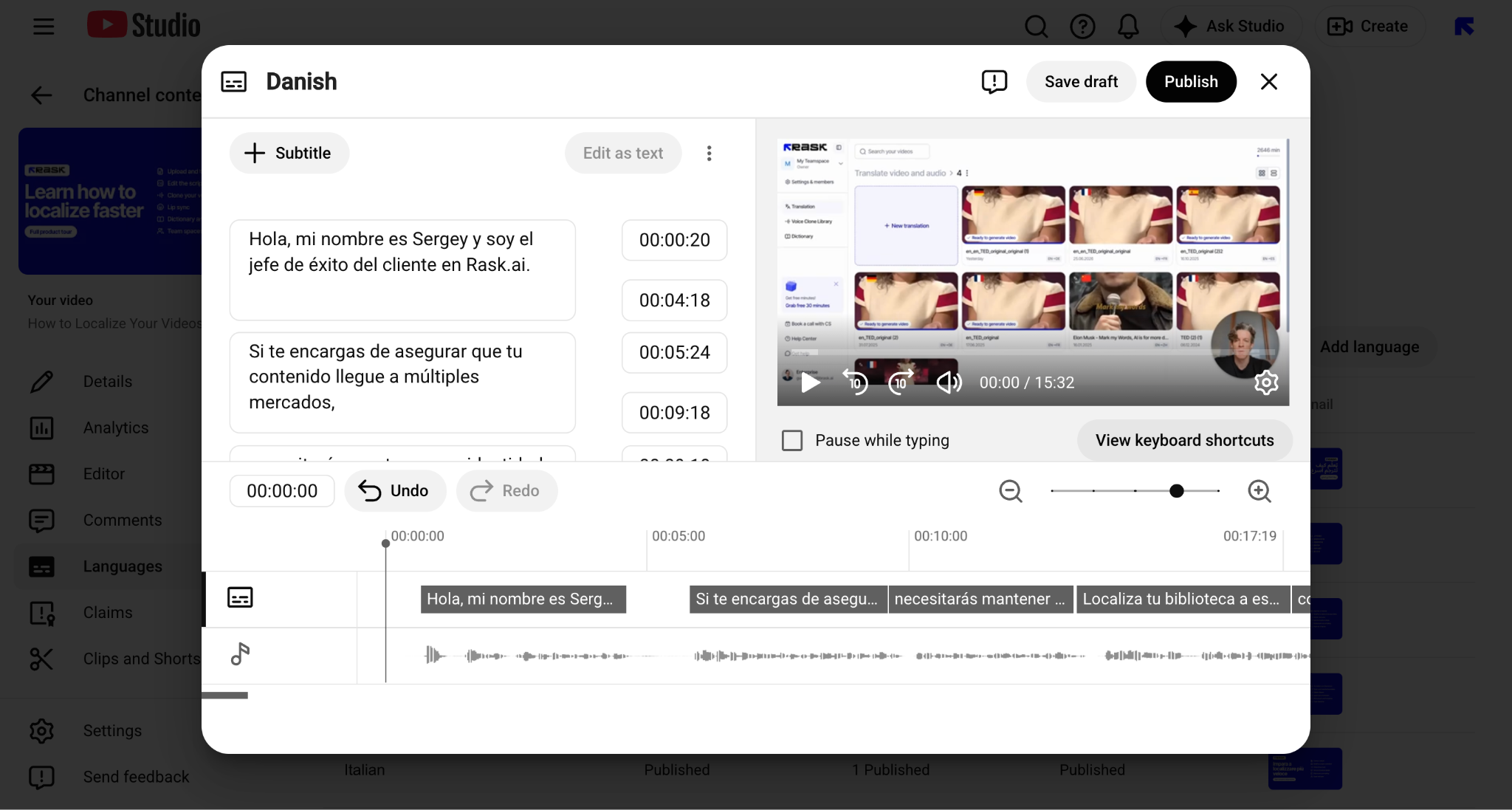
10. Upload your SRT file from Rask, that we generated before, click “Publish” and see magic happening - now you have subtitles to this language applied.
Users can turn them on or off with YouTube native settings while watching your content.
If any other questions, please contact us via the support chat in your Rask account or email us at support@rask.ai.